Excel Spreadsheet Translation: Handling Formulas, Data, and Formatting
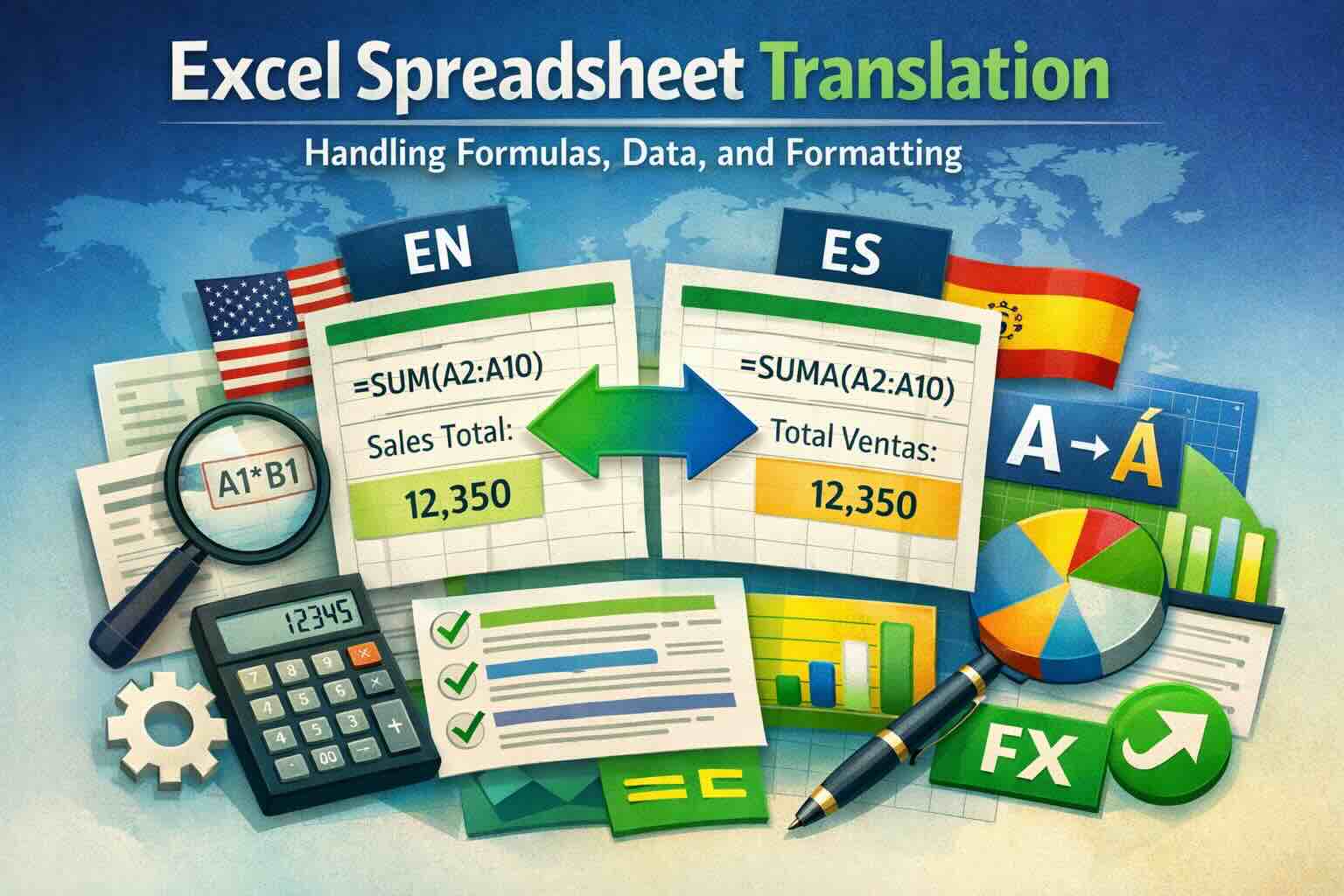
Discover how to translate Excel spreadsheets while preserving formulas, data integrity, and formatting. Learn professional techniques for handling multilingual Excel files, charts, pivot tables, and complex calculations without breaking functionality.
Excel spreadsheets are the backbone of business operations worldwide—from financial models and project timelines to inventory databases and sales reports. When these critical documents cross language barriers, maintaining accuracy becomes paramount. Unlike simple text documents, Excel files contain formulas, data relationships, formatting rules, and complex structures that must function identically across languages.
Here's your comprehensive guide to translating Excel spreadsheets while preserving every formula, data point, and visual element.
Why Excel Translation Is Uniquely Complex
Excel spreadsheets aren't just documents—they're functional tools with interconnected components that must all work together:
- Formulas and calculations: Cell references, functions, and complex mathematical operations
- Data integrity: Numbers, dates, currencies, and formatted values that must remain accurate
- Conditional formatting: Rules that automatically style cells based on values
- Charts and graphs: Visual representations linked to specific data ranges
- Pivot tables: Dynamic data analysis tools with multiple layers
- Data validation: Drop-down lists, input restrictions, and error checking
- Macros and VBA code: Automated processes and custom functions
- Named ranges: Cell references used throughout the workbook
A single translation error can break calculations, corrupt data relationships, or render the entire spreadsheet unusable.
Challenge 1: Formula Translation and Localization
Excel formulas require special handling because function names change between language versions.
Language-Specific Function Names
Excel function names are localized. The same formula uses different names in different languages:
- English: =SUM(A1:A10)
- German: =SUMME(A1:A10)
- French: =SOMME(A1:A10)
- Spanish: =SUMA(A1:A10)
- Italian: =SOMMA(A1:A10)
- Portuguese: =SOMA(A1:A10)
- Russian: =СУММ(A1:A10)
- Japanese: =合計(A1:A10)
Formula Separators and Regional Settings
Different regions use different separators in formulas:
- US/UK: Commas for arguments, periods for decimals: =SUM(A1,A2)
- Europe: Semicolons for arguments, commas for decimals: =SOMME(A1;A2)
- Array separators: Vary by region and affect complex formulas
Best Practices for Formula Translation
1. Use tools that handle formula localization automatically
- Professional translation tools convert function names to target language equivalents
- Maintain formula integrity while adapting to regional Excel versions
- Preserve complex nested formulas with multiple functions
- Handle array formulas and dynamic array functions correctly
2. Test all formulas after translation
- Verify calculations produce identical results in source and target languages
- Check formulas with cell references spanning multiple sheets
- Test error handling (IFERROR, IFNA) works correctly
- Validate formulas referencing named ranges or tables
3. Document custom functions and macros
- VBA code requires separate translation and may need regional adjustments
- Custom functions must work with localized function names
- Comments in VBA code should be translated for maintenance
- Test macro functionality thoroughly in target language environment
Challenge 2: Data Integrity and Formatting
Maintaining data accuracy while adapting to regional formats is critical.
Numbers and Currencies
Number formatting varies dramatically between regions:
- Decimal separators: 1,234.56 (US) vs 1.234,56 (Europe)
- Thousand separators: Comma vs period vs space vs none
- Currency symbols: $1,234.56 vs €1.234,56 vs ¥1,234
- Currency placement: Before vs after the amount
- Negative numbers: -100 vs (100) vs 100-
Date and Time Formats
Date formats require careful localization:
- US format: MM/DD/YYYY (12/31/2026)
- European format: DD/MM/YYYY (31/12/2026)
- ISO format: YYYY-MM-DD (2026-12-31)
- Text dates: "December 31, 2026" needs full translation
- Week starts: Sunday vs Monday affects WEEKDAY function
Best Practices for Data Formatting
1. Separate data from labels
- Keep translatable text in separate cells from calculated values
- Use consistent formatting throughout the workbook
- Apply number formats at the cell level, not hardcoded in formulas
- Document any special formatting requirements
2. Handle regional date differences carefully
- Use ISO date format (YYYY-MM-DD) for international compatibility when possible
- Be explicit with day/month order in ambiguous dates (e.g., 01/02/2026)
- Consider using DATEVALUE with unambiguous text dates
- Test date calculations across different regional settings
3. Preserve conditional formatting rules
- Ensure conditional formatting formulas work in target language
- Verify color scales, data bars, and icon sets display correctly
- Test that formatting rules still apply to correct cell ranges
- Update rule descriptions to target language
Challenge 3: Charts, Graphs, and Visual Elements
Excel's visual elements contain text that needs translation while maintaining data links.
Chart Translation Requirements
Every text element in charts needs attention:
- Chart titles: Main title and subtitle text
- Axis labels: Category axis and value axis titles
- Legend entries: Series names and descriptions
- Data labels: Values shown on chart elements
- Axis values: May need regional number formatting
- Trendline labels: Equations and R-squared values
Best Practices for Chart Translation
1. Translate chart elements systematically
- Update all text elements while preserving data source links
- Adjust chart size if translated text requires more space
- Maintain consistent color schemes and visual hierarchy
- Verify legends remain clear and readable
2. Handle dynamic chart titles
- Charts linked to cell values update automatically when those cells are translated
- Use cell references for chart titles to maintain dynamic updates
- Test that linked titles display correctly in target language
3. Consider text expansion in chart layouts
- German and French labels may be significantly longer than English
- Adjust chart dimensions to prevent text truncation
- Resize or reposition legend if entries become longer
- Use abbreviations strategically when space is limited
Challenge 4: Pivot Tables and Data Analysis
Pivot tables are powerful but complex structures requiring careful translation.
Pivot Table Components
Multiple elements need translation in pivot tables:
- Field names: Row, column, value, and filter field labels
- Custom field names: Renamed fields and calculated fields
- Value field settings: "Sum of Sales" becomes "Summe von Umsatz" in German
- Row/column labels: Category names in the pivot table
- Subtotal labels: "Total" and subtotal descriptions
- Filter labels: "(All)" and other filter descriptions
Best Practices for Pivot Table Translation
1. Translate source data first
- Update column headers in source data tables
- Translate category values if they contain text
- Refresh pivot table after source data translation
- Verify all data connections remain intact
2. Update calculated fields and items
- Translate custom field names and formulas
- Adapt formulas to localized function names
- Test calculations produce correct results
- Update field descriptions and custom names
3. Preserve pivot table formatting
- Maintain number formats for value fields
- Keep conditional formatting applied to pivot tables
- Preserve row and column banding styles
- Update pivot table style names if needed
Challenge 5: Data Validation and Drop-Down Lists
Interactive elements must function correctly in the target language.
Data Validation Translation
- Drop-down list options: Translate all selectable values
- Input messages: Guidance text shown when cell is selected
- Error alerts: Messages shown for invalid data
- Custom validation formulas: Adapt to localized function names
Best Practices for Validation Translation
1. Update list sources comprehensively
- Translate all options in drop-down source ranges
- Update named ranges used for validation lists
- Verify dependent drop-downs still cascade correctly
- Test that validation rules still apply properly
2. Translate all user-facing messages
- Update input messages to target language
- Translate error alert titles and messages
- Maintain appropriate tone (informative vs warning vs critical)
- Keep messages concise for readability
Best Practices Checklist for Excel Translation
Before Translation
- Document all formulas, especially complex or critical calculations
- Create a list of all named ranges and their purposes
- Note any macros, VBA code, or custom functions
- Identify all charts, pivot tables, and data connections
- Save a backup of the original file with version number
- Document regional settings used (decimal separator, date format)
During Translation
- Use professional tools that preserve Excel structure completely
- Translate formulas to target language function names automatically
- Maintain all cell references, named ranges, and data links
- Preserve number formats and conditional formatting rules
- Update chart elements while maintaining data source connections
- Translate pivot table fields and refresh to verify functionality
- Adapt data validation lists and messages
After Translation
- Test all formulas calculate correctly in target language Excel
- Verify charts display properly with translated labels
- Check pivot tables refresh and calculate accurately
- Test all macros function correctly (if applicable)
- Validate data validation rules work properly
- Compare critical calculations between source and translated files
- Have a subject matter expert review for accuracy
- Test file opens correctly in target language Excel version
Common Excel Translation Mistakes to Avoid
1. Manual copy-paste translation
Copying text into translation tools and pasting back breaks formulas, cell references, and formatting. Always use tools that work with native Excel files.
2. Ignoring formula localization
Using English function names in a German Excel file creates errors. Formulas must use language-appropriate function names.
3. Breaking cell references
Careless editing can break references between cells, sheets, or workbooks, corrupting calculations throughout the file.
4. Forgetting regional number formats
Not adapting decimal and thousand separators creates confusion and potential data entry errors for target language users.
5. Neglecting data validation
Leaving drop-down lists and error messages in the source language creates a poor user experience.
6. Skipping thorough testing
Failing to test all formulas, charts, and pivot tables in the target language environment can lead to critical errors going unnoticed.
Professional Excel Translation Workflow
For business-critical spreadsheets, follow this proven workflow:
Step 1: Analysis and Preparation
- Audit the spreadsheet for complexity and special requirements
- Document all formulas, macros, and data connections
- Create terminology glossary for consistent translation
- Identify cells requiring translation vs cells to preserve unchanged
Step 2: Translation Execution
- Use professional Excel translation tools that preserve structure
- Translate text content while maintaining formulas and formatting
- Adapt formulas to target language function names
- Update charts, pivot tables, and visual elements
- Translate data validation and input messages
Step 3: Technical Validation
- Test all formulas produce identical results to source file
- Verify charts link correctly to data and display properly
- Check pivot tables refresh and calculate accurately
- Test macros and VBA code functionality
- Validate data validation rules work correctly
Step 4: Linguistic Review
- Native speaker reviews all translated content
- Verify terminology consistency throughout
- Check cultural appropriateness of examples and descriptions
- Ensure professional tone appropriate for target audience
Step 5: User Acceptance Testing
- Have end users test the translated spreadsheet
- Verify workflow and usability in target language
- Check that all features work as expected
- Gather feedback on any unclear elements
Step 6: Final Delivery
- Provide translated file in native Excel format
- Include documentation of any changes or special considerations
- Create user guide if spreadsheet complexity requires it
- Maintain source files for future updates
Conclusion
Translating Excel spreadsheets requires more than linguistic expertise—it demands technical knowledge of Excel's complex structure, formulas, and data relationships. A successful translation preserves complete functionality while adapting content to the target language and regional conventions.
Modern AI-powered translation platforms have revolutionized Excel translation, automatically handling formula localization, preserving data integrity, and maintaining all formatting—tasks that once required hours of manual work and technical expertise.
Whether you're translating financial models, project plans, inventory systems, or data analysis tools, the right approach ensures your spreadsheets work perfectly in any language.
Ready to translate your Excel spreadsheets professionally? Try EasyDocTranslate's advanced Excel translation service with automatic formula localization and complete structure preservation, supporting 100+ languages while maintaining all your calculations and formatting. We also support Word, PDF, PowerPoint, and scanned document translation. Get started now or contact us for expert assistance.
Ready to Experience Professional Translation?
Try EasyDocTranslate's AI-powered service with support for 100+ languages and automatic format preservation
Translate an Excel FileTools
Popular Translation Tools
Jump from our guides directly to the right document translator.
PDF Translator
Translate native and scanned PDFs with OCR.
Word Translator
Translate DOCX and DOC files while keeping formatting.
Excel Translator
Translate XLSX, XLS and CSV spreadsheets.
Scan Translator
Translate scanned documents, JPG and PNG images.
Traductor Online Gratis
Textos largos, PDF y documentos completos.
Traducción Inglés Español
Documentos PDF y Word con IA.
Traductor Inglés Español
Traduce textos largos y documentos completos.
Traductor de Documentos
PDF, Word, Excel y PowerPoint con IA.
Continue Reading
Explore more articles about document translation, AI technology, and multilingual content

PowerPoint Translation Best Practices: Slides, Animations, and Visual Elements
Master the art of PowerPoint translation with proven best practices for preserving animations, adapting text, and maintaining visual elements. Learn how to translate presentations while keeping your slides professional and impactful.
How to Translate Word Without Losing Formatting
A practical guide to translating DOCX and DOC files while preserving tables, headers, images, fonts, and page layout.
How to Translate Excel Files Without Breaking Tables
Learn how to translate Excel files online while preserving workbook structure, tables, sheets, charts, and formatting.

How to Translate a Scanned PDF Online
Learn how to translate scanned PDFs online with OCR, keep document structure, and preview the first translated page before downloading the full file.