PowerPoint Translation Best Practices: Slides, Animations, and Visual Elements
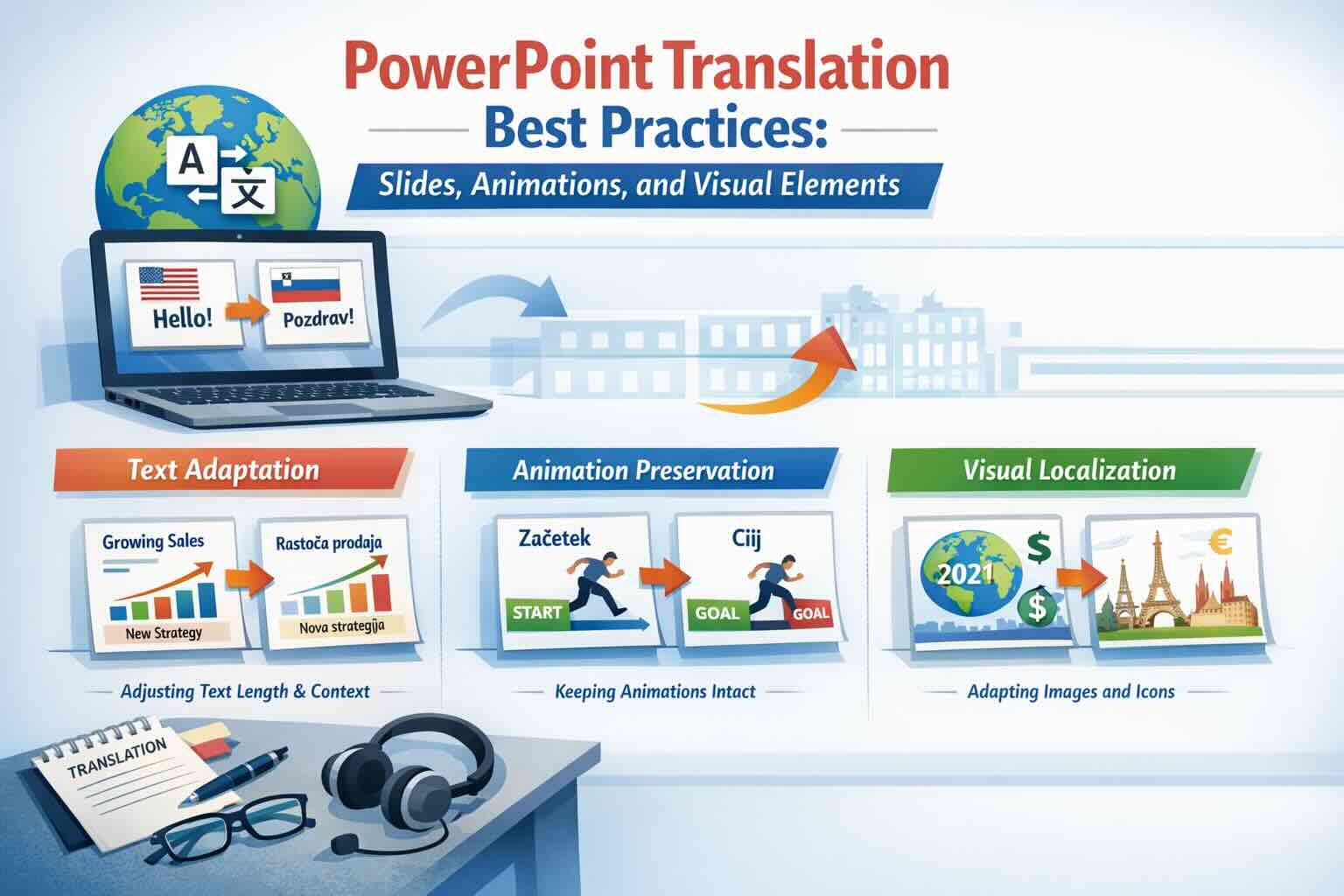
Master the art of PowerPoint translation with proven best practices for preserving animations, adapting text, and maintaining visual elements. Learn how to translate presentations while keeping your slides professional and impactful.
PowerPoint presentations are the backbone of business communication worldwide. From sales pitches to training materials, presentations need to work across languages and cultures. But translating PowerPoint slides while preserving animations, visual elements, and professional design is uniquely challenging.
Here's your complete guide to PowerPoint translation best practices that preserve what makes your presentations powerful.
Why PowerPoint Translation Is Different
Unlike simple documents, PowerPoint presentations combine multiple elements that must work together:
- Text and typography: Titles, bullet points, and body text in specific fonts and sizes
- Visual design: Images, icons, charts, diagrams, and infographics
- Animations and transitions: Timing, effects, and movement that support your message
- Layout and spacing: Carefully balanced slide designs that guide the viewer's eye
- Speaker notes: Hidden content that supports presenters
- Embedded objects: Videos, audio, Excel charts, and other media
Translation affects all of these elements. A word-for-word translation can break your carefully crafted design, ruin timing, or create slides that look unprofessional.
Challenge 1: Text Expansion and Contraction
Different languages take different amounts of space to express the same idea. This is called text expansion or contraction.
Common Expansion Rates
When translating from English:
- German: +10-35% longer (compound words create extra length)
- French: +15-25% longer (requires more words for the same meaning)
- Spanish: +15-30% longer (more verbose grammatical structures)
- Italian: +10-25% longer (descriptive language patterns)
- Russian: +10-15% longer (Cyrillic characters and grammar)
- Chinese: -30% shorter (character-based writing system)
- Japanese: -10-20% shorter (compact writing system)
- Korean: Similar length (efficient alphabet system)
Best Practices for Text Fitting
1. Design with translation in mind
- Leave 30-40% white space in text boxes for expansion
- Use concise, clear language in the source slides
- Avoid filling slides edge-to-edge with text
- Choose flexible layouts over rigid text boxes
2. Handle overflow professionally
- Reduce font size minimally (maximum 1-2 points) to maintain readability
- Adjust line spacing and margins before changing font size
- Split overloaded slides into two slides if necessary
- Rephrase for conciseness while preserving meaning
- Use abbreviations where culturally appropriate
3. Maintain visual hierarchy
- Keep headlines prominent even if font size adjusts
- Preserve the relative emphasis between title, subtitle, and body
- Maintain consistent spacing throughout the presentation
- Ensure key messages remain visually dominant
Challenge 2: Preserving Animations and Transitions
Animations and transitions add impact to presentations. They control pacing, reveal information progressively, and keep audiences engaged. Losing them in translation defeats the purpose.
Animation Preservation Best Practices
1. Understand your animation structure
- Document which slides use animations before translating
- Note entrance, emphasis, exit, and motion path animations
- Record animation timing and trigger settings
- Identify animations linked to specific text or objects
2. Use professional translation tools
- Choose services that preserve PPTX file structure completely
- Avoid copy-paste translation methods that strip formatting
- Test a sample slide with animations before committing to full translation
- Verify that animation triggers remain connected to the right objects
3. Post-translation verification
- Review every animated slide in Slide Show mode
- Check that animation order remains logical
- Verify timing still makes sense with translated text length
- Adjust animation speed if text expansion affects readability
- Test click-triggered vs. automatic animations thoroughly
Common Animation Issues to Watch For
- Text appearing too fast: Longer translated text may need slower animation
- Broken emphasis animations: Animations highlighting specific words may need repositioning
- Misaligned motion paths: Text box resizing can affect motion animation endpoints
- Lost triggers: Animation triggers can disconnect during translation if not handled carefully
Challenge 3: Visual Elements and Graphics
Visual elements often contain embedded text that needs translation while maintaining design integrity.
Text Within Images
Problem: Charts, diagrams, infographics, and screenshots contain text that's part of the image.
Solutions:
- Editable graphics: Use SmartArt, charts, and native PowerPoint shapes instead of static images
- Layered approach: Keep text as separate text boxes overlaid on images rather than burned into graphics
- Source files: Maintain original Illustrator, Photoshop, or other design files for graphics
- Professional editing: Use graphic design tools to edit text within complex images
- Recreation option: For critical slides, recreate infographics from scratch in target languages
Charts and Graphs
Best practices for data visualization translation:
- Use native Excel charts in PowerPoint (not image exports) so text updates automatically
- Translate axis labels, legends, and data labels systematically
- Verify number formatting conventions (commas vs. periods in different locales)
- Check date formats match target country expectations (MM/DD vs. DD/MM)
- Consider whether currency symbols need updating
- Ensure translated labels don't overlap or crowd the chart
Icons and Symbolic Elements
Some visual elements carry cultural meaning:
- Colors: Red means danger in Western cultures but celebration in China
- Icons: Mailbox icons look different in different countries
- Gestures: Hand signals have different meanings across cultures
- Symbols: Checkmarks, currency symbols, and directional arrows may need localization
Recommendation: Review visual elements with native speakers or cultural consultants to avoid unintended messages.
Challenge 4: Layout and Design Consistency
Maintaining professional appearance across all translated versions is critical for brand consistency.
Master Slide Management
Best practice: Create a master slide template for each target language.
- Adjust text box sizes on master slides to accommodate typical expansion
- Set appropriate default fonts for each language (some fonts don't support all characters)
- Configure line spacing and margins for each language's text patterns
- Test master slides with typical content before rolling out to full presentations
Font Considerations
Different languages require different fonts:
- Asian languages: Require fonts with complete CJK character support (Chinese, Japanese, Korean)
- Cyrillic text: Ensure fonts include full Cyrillic character sets (Russian, Ukrainian, Bulgarian)
- Arabic and Hebrew: Require right-to-left text support with proper character joining
- Special characters: Accents, umlauts, and diacritical marks must render correctly
Pro tip: Choose fonts available across all target languages to maintain consistent branding. Google Fonts and Microsoft Office fonts often have broad language support.
Challenge 5: Speaker Notes and Hidden Content
Don't forget the content your audience doesn't see.
Speaker Notes Translation
Speaker notes guide presenters through the presentation. They need the same translation quality as visible content:
- Translate all speaker notes completely and accurately
- Maintain formatting (bullet points, emphasis) in notes
- Adapt cultural references and examples for target audiences
- Include pronunciation guides for difficult terms or names
- Update timing suggestions if slide content length changed
Hidden Slides and Alternative Content
- Don't forget to translate hidden backup slides
- Update alternative text (alt text) for images for accessibility
- Translate hyperlink text and verify links still work for target audiences
- Check slide titles in Slide Sorter view for navigation clarity
Challenge 6: Video and Audio Elements
Embedded multimedia requires special attention.
Video Translation Options
- Subtitles: Add translated subtitles to videos (most common solution)
- Voiceover: Replace audio track with translated narration
- On-screen text: Recreate videos with translated text overlays
- Replacement: Create entirely new videos for different language markets
Audio Narration
If your presentation includes recorded narration:
- Provide translated scripts to voice artists
- Match the timing of the original narration
- Use native speakers for natural pronunciation
- Sync audio with slide animations and transitions
- Consider cultural differences in presentation tone and pace
Best Practices Checklist
Follow this checklist for every PowerPoint translation project:
Before Translation
- Clean up your source presentation (remove old slides, fix typos)
- Document which slides use animations, videos, or special effects
- Identify images with embedded text that need special handling
- Create a glossary of key terms for consistency
- Gather any source files for graphics or charts
During Translation
- Use professional tools that preserve PPTX structure completely
- Maintain consistent terminology throughout the presentation
- Keep track of slides that may need layout adjustments
- Translate speaker notes along with visible content
- Handle charts and SmartArt as editable objects, not images
After Translation
- Review every slide in both Edit and Slide Show mode
- Check that all animations work correctly and make sense
- Verify text fits properly without awkward line breaks
- Test all links, videos, and interactive elements
- Have a native speaker review for cultural appropriateness
- Run a full presentation rehearsal before the actual event
Common PowerPoint Translation Mistakes to Avoid
1. Using copy-paste translation
Copying text into online translation tools and pasting back destroys formatting, animations, and layout. Always use tools that work with the native PPTX file format.
2. Ignoring text expansion
Not accounting for language expansion leads to cut-off text, illegible slides, and unprofessional appearance.
3. Forgetting to test animations
Animations may appear correct in editing mode but fail in presentation mode. Always test in Slide Show view.
4. Neglecting speaker notes
Translating slides but not speaker notes leaves presenters unable to deliver effectively in the target language.
5. Using inappropriate fonts
Fonts that don't support target language characters result in missing text or placeholder squares.
6. Skipping cultural review
Direct translation without cultural adaptation can create awkward or even offensive content.
Professional PowerPoint Translation Workflow
For business-critical presentations, follow this professional workflow:
Step 1: Preparation
- Audit your presentation for translation readiness
- Create a style guide with terminology, tone, and branding guidelines
- Prepare reference materials for translators
Step 2: Translation
- Use professional translation service with PPTX preservation
- Provide glossaries and context to ensure accuracy
- Request native speaker translation for natural language
Step 3: Design Adaptation
- Review and adjust layouts for text expansion/contraction
- Verify animations and transitions work properly
- Update graphics with embedded text
- Ensure fonts support target language characters
Step 4: Quality Review
- Native speaker review for accuracy and cultural fit
- Design review for professional appearance
- Technical review for animations, links, and media
- Presentation rehearsal to test in real conditions
Step 5: Final Delivery
- Provide both editable PPTX and PDF versions
- Include translated speaker notes
- Document any special instructions or considerations
- Create backup versions without animations if needed
Tools and Technology for PowerPoint Translation
The right tools make PowerPoint translation dramatically easier:
What to Look For
- Format preservation: Maintains all animations, transitions, and formatting
- Native PPTX handling: Works directly with PowerPoint files, not converted formats
- Visual element support: Handles charts, SmartArt, and embedded objects correctly
- Speaker notes translation: Includes hidden content, not just visible slides
- Quality translation: Uses professional translation engines or human translators
- Fast turnaround: Delivers results quickly for time-sensitive presentations
Translate Your PowerPoint Presentations
Ready to create professional multilingual presentations that preserve your design, animations, and impact?
Try our PowerPoint translation service designed specifically for business presentations:
- Complete animation and transition preservation
- Automatic text fitting and layout optimization
- SmartArt and chart translation support
- Speaker notes included
- 100+ languages available
- Professional quality, affordable pricing
Start translating now and deliver powerful presentations in any language. Questions about complex presentations? Contact us for expert assistance.
Also available: Translation services for PDF, Word, and Excel documents. View our transparent pricing.
Ready to Experience Professional Translation?
Try EasyDocTranslate's AI-powered service with support for 100+ languages and automatic format preservation
Translate a DocumentTools
Popular Translation Tools
Jump from our guides directly to the right document translator.
PDF Translator
Translate native and scanned PDFs with OCR.
Word Translator
Translate DOCX and DOC files while keeping formatting.
Excel Translator
Translate XLSX, XLS and CSV spreadsheets.
Scan Translator
Translate scanned documents, JPG and PNG images.
Traductor Online Gratis
Textos largos, PDF y documentos completos.
Traducción Inglés Español
Documentos PDF y Word con IA.
Traductor Inglés Español
Traduce textos largos y documentos completos.
Traductor de Documentos
PDF, Word, Excel y PowerPoint con IA.
Continue Reading
Explore more articles about document translation, AI technology, and multilingual content
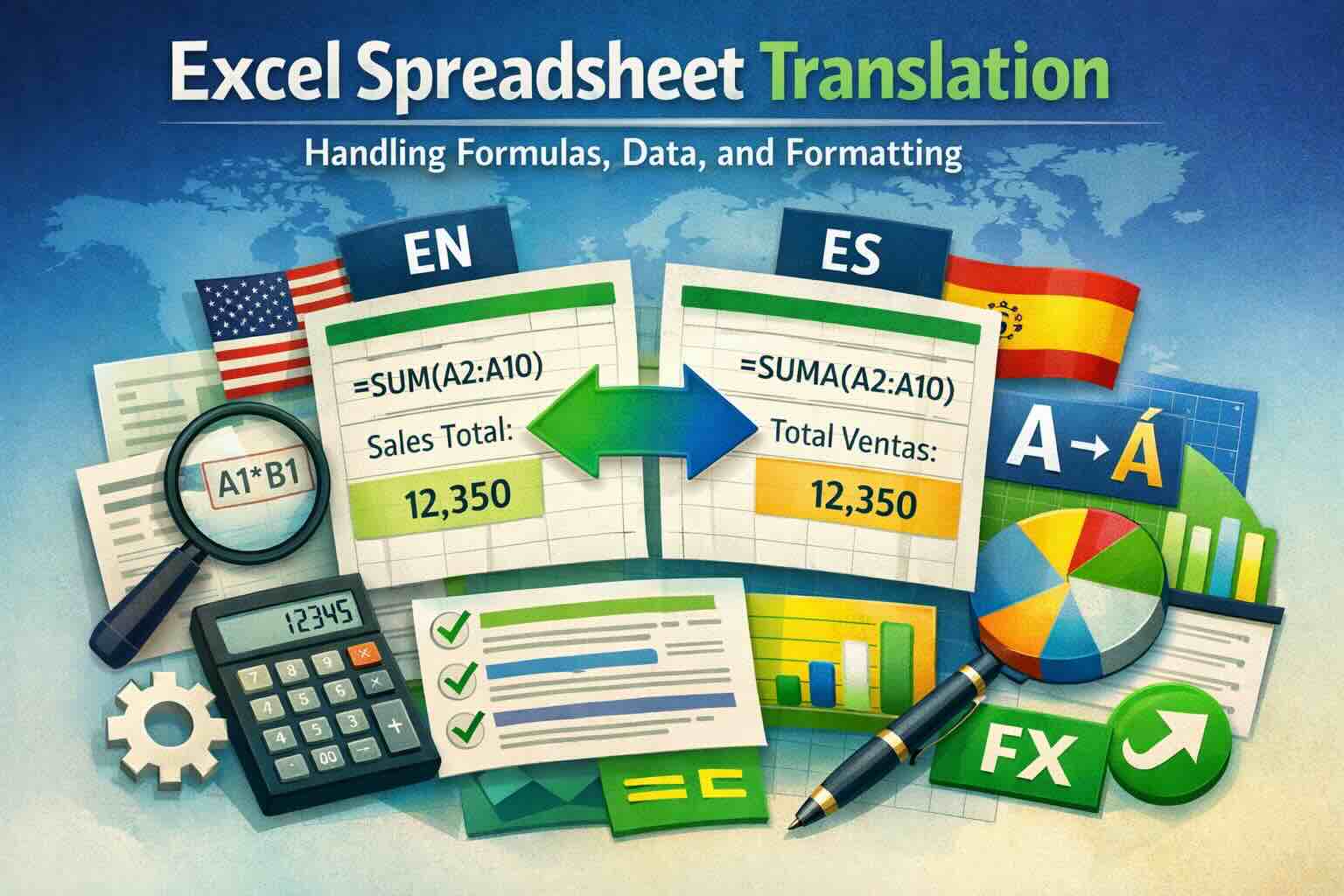
Excel Spreadsheet Translation: Handling Formulas, Data, and Formatting
Discover how to translate Excel spreadsheets while preserving formulas, data integrity, and formatting. Learn professional techniques for handling multilingual Excel files, charts, pivot tables, and complex calculations without breaking functionality.
How to Translate Word Without Losing Formatting
A practical guide to translating DOCX and DOC files while preserving tables, headers, images, fonts, and page layout.
How to Translate Excel Files Without Breaking Tables
Learn how to translate Excel files online while preserving workbook structure, tables, sheets, charts, and formatting.
How to Translate a Scanned PDF Online
Learn how to translate scanned PDFs online with OCR, keep document structure, and preview the first translated page before downloading the full file.