Word Document Translation: Mastering Headers, Tables, and Complex Formatting
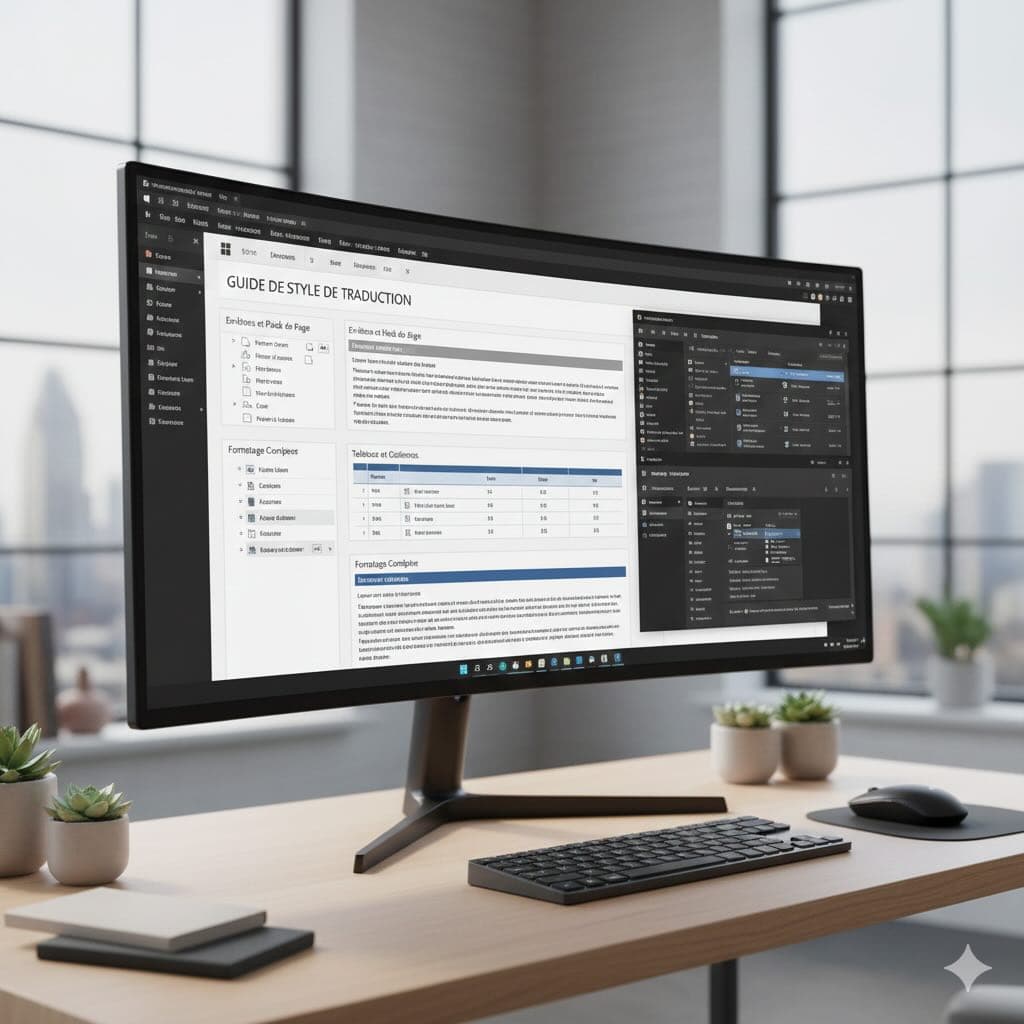
Learn how to translate Word documents while preserving headers, tables, track changes, and complex formatting. Master the challenges of DOCX translation with our practical guide.
Microsoft Word is the world's most popular document format for business, making Word translation the most common translation need. But preserving complex formatting while translating can be challenging. Here's how to handle it like a pro.
Why Word Documents Are Tricky to Translate
Word documents contain more than just text:
- Headers and footers with page numbers and dates
- Tables with specific column widths and cell formatting
- Track changes and comments from collaborators
- Table of contents and cross-references
- Styles and formatting (bold, italic, fonts, colors)
- Images and captions embedded in text
- Macros and embedded objects that may contain text
- Section breaks and multi-column layouts
Text expansion in translation (languages like German or Spanish are 20-30% longer than English) can break your carefully designed layout. Additionally, different language scripts (Latin, Cyrillic, Arabic, Asian characters) may require font changes or special character support.
Understanding Document Structure
Before translating, it's crucial to understand how Word documents are structured:
Sections and Breaks
Word documents are divided into sections, each with its own formatting:
- Section breaks control page orientation, margins, and headers/footers
- Page breaks determine where new pages start
- Column breaks in multi-column layouts
When translating, these breaks must be preserved to maintain document structure.
Styles vs. Direct Formatting
There are two ways text gets formatted in Word:
Styles (Recommended):
- Predefined formatting sets (Heading 1, Normal, etc.)
- Easy to update globally
- Maintains consistency across translations
- Professional appearance
Direct Formatting (Problematic):
- Manual bold, italic, font changes
- Hard to maintain consistency
- Can be lost during translation
- Creates formatting chaos
Best practice: Convert direct formatting to styles before translation.
Key Challenges in Word Translation
1. Headers and Footers
The problem: Headers often contain dates, page numbers, and document titles that need translation but are easy to miss.
Real-world example: A contract header reading "Confidential - Draft Version 3 - December 2024" needs each element translated and formatted correctly for the target language and locale.
Solution:
- Always check and translate header/footer content
- Update dates to target language format (DD/MM/YYYY vs. MM/DD/YYYY)
- Ensure page numbering remains consistent
- Check for different first page or odd/even page headers
- Verify that headers appear on all appropriate pages
2. Tables and Columns
The problem: Translated text may overflow table cells, breaking layout and forcing awkward line breaks.
Real-world example: A product specification table with "Weight" (6 characters) translating to German "Gewicht" (8 characters) or "Produktgewicht" (15 characters) can disrupt carefully balanced column widths.
Solution:
- Allow flexible cell widths where possible (avoid fixed-width tables)
- Consider condensing translations or using abbreviations
- Adjust font sizes (9pt instead of 10pt for dense tables)
- Test table rendering after translation on different page sizes
- Use Word's "AutoFit to Contents" feature
- Consider rotating text in narrow columns
- Ensure merged cells translate correctly
3. Track Changes and Comments
The problem: Should you translate comments? What about tracked changes from original authors?
Decision framework:
- Comments: Usually leave in original language (they're editorial, not content). However, if comments contain instructions for the translated version, translate them.
- Track changes: Accept all changes before translation for clean text. This prevents confusion about which version to translate.
- New comments: Translator can add comments in target language for clarifications or questions.
- Revision history: Consider if you need to preserve the edit history or start fresh in the translated version.
Pro tip: For collaborative documents, create a "Translation Ready" version with all changes accepted and unnecessary comments removed before sending for translation.
4. Table of Contents and Cross-References
The problem: Auto-generated TOC and cross-references break when text changes.
Common issues:
- TOC shows original language headings after translation
- Cross-references like "See Section 3.2" need translation
- Page numbers may shift due to text expansion
- Hyperlinks within the document may break
Solution:
- After translation, update all fields (Ctrl+A, then F9 in Word for Windows, Cmd+A then Fn+F9 for Mac)
- Verify all cross-reference links still work correctly
- Check that page numbers in TOC are accurate
- Test all internal hyperlinks
- Translate field text like "See Section" or "Figure"
Advanced tip: Use Word's built-in cross-reference feature instead of typing "See page 5" manually. This ensures automatic updates when content shifts.
5. Styles and Formatting
The problem: Inconsistent formatting makes documents look unprofessional.
Why styles matter:
- Ensure uniform appearance across all translated documents
- Allow global formatting changes with one click
- Make document navigation easier
- Enable proper TOC generation
- Facilitate template reuse across languages
Solution: Use Word styles (Heading 1, Heading 2, Normal) instead of manual formatting. This ensures consistency across languages and makes updates easier.
How to convert direct formatting to styles:
- Select text with direct formatting
- Right-click and choose "Styles" > "Create a Style"
- Or match to existing style with "Select All Similar Formatting"
- Apply appropriate heading or paragraph style
Best Practices for Word Translation
Before Translation
- Accept all track changes
- Remove unnecessary comments
- Check for hidden text or formatting
- Save a backup copy
- Note any special formatting requirements
During Translation
- Maintain original paragraph structure
- Preserve bold, italic, and hyperlinks
- Keep table structure intact
- Don't translate image file names (can break links)
- Use translation memory for consistency
After Translation
- Update table of contents (Right-click → Update Field)
- Check all cross-references work
- Verify page breaks are logical
- Test all hyperlinks
- Print preview to catch layout issues
Industry-Specific Word Translation Challenges
Legal Documents
Legal Word documents have unique requirements:
- Numbered clauses: Must maintain exact numbering scheme (1.1, 1.2, 2.1, etc.)
- Defined terms: Capitalized terms need consistent translation throughout
- Signature blocks: Format and spacing must be preserved
- Exhibits and schedules: Cross-references must update correctly
- Track changes: May be required to show translation modifications
Technical Manuals
Technical documentation presents specific challenges:
- Terminology consistency: "Start button" must always translate the same way
- Step numbering: Procedural steps must maintain sequential order
- Screenshots and callouts: Image captions need translation
- Warning labels: Safety information must be prominent and clear
- Parts lists: Tables with part numbers and descriptions
Marketing Materials
Marketing documents need creative adaptation:
- Brand voice: Tone must match company style in target language
- Slogans: May need creative transcreation, not literal translation
- Layout: Visual appeal is critical; text expansion must not break design
- Images with text: Text overlays on images need separate handling
- Call-to-action buttons: Must be culturally appropriate and effective
Academic Papers
Academic documents require special attention:
- Citations: Reference format must follow target language conventions
- Abstract: Often requires separate, condensed translation
- Equations: Math notation needs special character support
- Footnotes and endnotes: Must maintain proper placement
- Bibliography: May need reordering based on target language alphabetization
Advanced Word Translation Techniques
Working with Multilingual Documents
Some documents contain multiple languages:
- Set language for different sections using Review > Language
- Use language-specific spell checking
- Ensure proper font support for all languages
- Consider text direction for RTL languages (Arabic, Hebrew)
Macros and Automated Content
Documents with macros require special handling:
- Text in macros: May need VBA code translation
- Auto-generated content: Ensure macros work in translated version
- Form fields: Field names and prompts need translation
- Security warnings: Inform translators about macro-enabled documents
Template Translation
Translating Word templates for reuse:
- Translate all placeholder text
- Update style names if visible to users
- Test with sample content in target language
- Verify AutoText entries are translated
- Check building blocks and Quick Parts
Common Word Translation Mistakes
Mistake #1: Breaking Table Structure
Adding or removing table rows/columns changes document structure. Keep the same number of rows and columns, only translate cell content.
Mistake #2: Ignoring Styles
Manual formatting instead of using Word styles creates inconsistencies. Always use built-in or custom styles for headings and body text.
Mistake #3: Forgetting Headers/Footers
Leaving headers and footers untranslated looks unprofessional. Check all pages, including first page and odd/even variations.
Mistake #4: Not Updating Auto-Generated Content
Table of contents, indexes, and cross-references need manual updates after translation. Press Ctrl+A, then F9 to update all fields.
Mistake #5: Losing Text in Text Boxes
Text boxes and shapes can be overlooked during translation. Systematically check all text boxes, shapes, and SmartArt graphics.
Mistake #6: Breaking Hyperlinks
Hyperlinks to external URLs or email addresses can break if not handled carefully. Test all links after translation.
AI-Powered Word Translation
Modern translation platforms can automatically:
- Preserve all Word formatting and styles
- Maintain table structure and cell formatting
- Keep headers, footers, and page numbers intact
- Preserve hyperlinks and cross-references
- Handle embedded images and captions
This eliminates manual formatting work and ensures professional results.
Translate Your Word Documents
Ready to translate Word documents while preserving all formatting? Try our Word translation service with automatic formatting preservation.
Features:
- Automatic table, header, and footer handling
- Preserve all styles and formatting
- Support for complex documents
- Track changes compatible
- 100+ languages available
Start translating now or learn about our transparent pricing. We also support PDF, Excel, and PowerPoint translation.
Ready to Experience Professional Translation?
Try EasyDocTranslate's AI-powered service with support for 100+ languages and automatic format preservation
Translate a Word DocumentTools
Popular Translation Tools
Jump from our guides directly to the right document translator.
PDF Translator
Translate native and scanned PDFs with OCR.
Word Translator
Translate DOCX and DOC files while keeping formatting.
Excel Translator
Translate XLSX, XLS and CSV spreadsheets.
Scan Translator
Translate scanned documents, JPG and PNG images.
Traductor Online Gratis
Textos largos, PDF y documentos completos.
Traducción Inglés Español
Documentos PDF y Word con IA.
Traductor Inglés Español
Traduce textos largos y documentos completos.
Traductor de Documentos
PDF, Word, Excel y PowerPoint con IA.
Continue Reading
Explore more articles about document translation, AI technology, and multilingual content
How to Translate Word Without Losing Formatting
A practical guide to translating DOCX and DOC files while preserving tables, headers, images, fonts, and page layout.
Doc Translator Online: The Complete Guide to Document Translation
Everything you need to know about online doc translators. Learn how to translate Word documents, PDFs, and other files while preserving formatting, using AI-powered translation technology.
PDF Translation Best Practices: Maintaining Layout and Formatting
Master the art of PDF translation while preserving your document's original layout, formatting, and visual elements. Learn techniques and tools for professional PDF translation.
How to Translate a Scanned PDF Online
Learn how to translate scanned PDFs online with OCR, keep document structure, and preview the first translated page before downloading the full file.