Translate an Excel Product Catalog to English Without Mixing Up SKUs
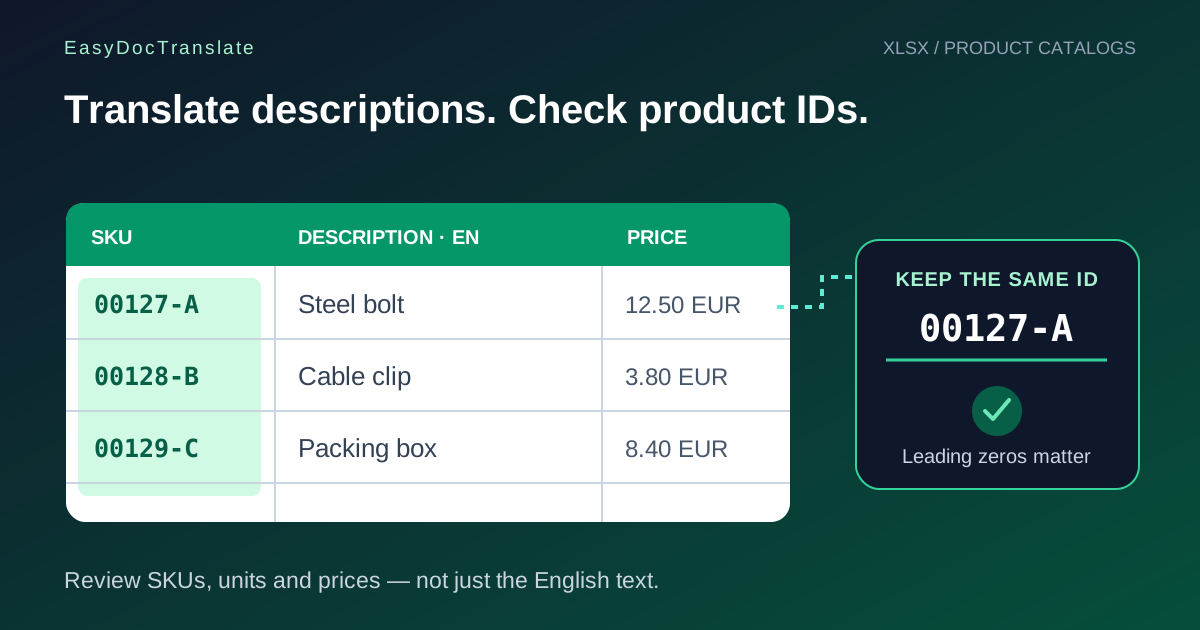
Prepare an XLSX catalog for translation and check product codes, prices, units and formulas. Learn which values to compare before reusing the workbook.
When you translate an Excel file to English for a product catalog, the descriptions need to change language while each product must remain identifiable. An English description attached to the wrong SKU is a data problem, even if every sentence reads well. Treat the workbook as connected records rather than a collection of unrelated text cells.
This guide focuses on catalogs and price lists. It complements the broader Excel translation guide with checks for product IDs, leading zeros, numeric fields and the relationship between rows.
Separate descriptions from identifiers
Before uploading, list the fields that contain language and the fields that identify or quantify a product. Descriptions, category labels and instructions may need translation. SKUs, barcodes, supplier references and model numbers normally need exact comparison with the source.
This distinction is a review plan, not a promise that an automatic translator will leave every code untouched. Keep the original workbook and work from a separate copy. If certain fields must remain unchanged, compare them after translation before importing the result into another system.
| Field | Example review rule |
|---|---|
| SKU | 00127-A must still identify the same product, including its leading zeros. |
| Product description | The English description should match the same item, size and material. |
| Price | Keep the numeric amount and check the currency; translation is not currency conversion. |
| Units | Verify whether the value means one item, one pack or one measured quantity. |
| Formula | Compare the calculation and its result, not only the displayed label. |
The SKU above is an illustrative example, not a customer record or a measured translation result.
Watch for changes that happen before translation
A spreadsheet editor may remove leading zeros or reinterpret a code as a date or number during entry and import. If an identifier has already changed in the source workbook, translation cannot reliably restore it.
For codes that must remain text, use appropriate text handling when entering or importing them. Formatting a cell afterward may not recover information that was already lost. Microsoft's guidance on leading zeros and large numbers explains these cases and the distinction between stored values and display formatting.
Also check decimal separators and dates. A translated label does not establish whether 1,250 means a decimal value or a thousands-formatted amount in the source. Confirm the workbook's convention before making any changes.
Prepare an XLSX working copy
- Save a copy of the workbook and confirm the original remains available.
- If you have an older XLS file, save it as XLSX in a compatible spreadsheet editor. Do not just rename the extension.
- Check worksheet names, row counts, hidden rows and any filters that affect what you see.
- Record a few representative SKUs, prices and formula results for comparison.
- Inspect the print layout used to prepare a page preview. One worksheet is not necessarily one page.
The upload supports XLSX and CSV. CSV is useful for a plain table, but it does not retain the full structure and formatting of a workbook. If your task relies on multiple worksheets, formulas or styled tables, avoid discarding that structure just to create a smaller file.
Use the Excel translator and review the quote
Open the Excel translator, choose the source language and English as the target, then upload one supported file of up to 40 MB. Continue to the free first-page preview.
The preview is a visual sample, not a test of every worksheet or calculation. Check any displayed product row against the source. If the first page contains only a heading, it cannot confirm the contents of later pages.
Full translation costs €0.99 for the first page and €0.50 for each additional page. For spreadsheets, check the page count calculated during preparation rather than counting worksheet tabs. A workbook rendered into ten pages costs €5.49 at that rate; consult the pricing page and the displayed quote before proceeding.
Validate the translated catalog before using it
Compare the same SKUs, prices and formula results you recorded earlier. Check descriptions against their identifiers, not merely against row numbers, especially if someone has sorted either copy. Review units and pack quantities alongside descriptions.
For a larger catalog, compare identifiers systematically in your spreadsheet editor or data-validation workflow. A few correct sample rows do not prove that all rows are correct. Recalculate relevant formulas and check for missing references before uploading the workbook to a store or sharing a price list.
Frequently asked questions
Will translation convert prices into another currency?
No currency conversion should be inferred from translating a file. Keep amounts and currency labels under a separate review process.
Can I tell the upload to translate only one column?
The current web workflow accepts a document and a language pair; it does not present a column-selection control. Prepare the intended working copy in your editor and review the output against the original.
Does a correct PDF preview prove the formulas work?
No. A visual preview shows rendered content. Formula behavior must be checked in the resulting workbook before it is used for calculations.
Preview your Excel catalog translation. If the catalog exists only as scanned pages rather than a workbook, start with the scanned document workflow.
Ready to Preview Your Document Translation?
Preview the first translated page free. Full translation costs €0.99 for the first page and €0.50 for each additional page.
Preview an Excel File TranslationTools
Popular Translation Tools
Jump from our guides directly to the right document translator.
PDF Translator
Translate native and scanned PDFs with OCR.
Word Translator
Translate DOCX and DOC files while keeping formatting.
Excel Translator
Translate XLSX, XLS and CSV spreadsheets.
Scan Translator
Translate scanned documents, JPG and PNG images.
Traductor Online Gratis
Textos largos, PDF y documentos completos.
Traducción Inglés Español
Documentos PDF y Word con IA.
Traductor Inglés Español
Traduce textos largos y documentos completos.
Traductor de Documentos
PDF, Word, Excel y PowerPoint con IA.
Continue Reading
Explore more articles about document translation, AI technology, and multilingual content

PowerPoint Translation Best Practices: Slides, Animations, and Visual Elements
Master the art of PowerPoint translation with proven best practices for preserving animations, adapting text, and maintaining visual elements. Learn how to translate presentations while keeping your slides professional and impactful.
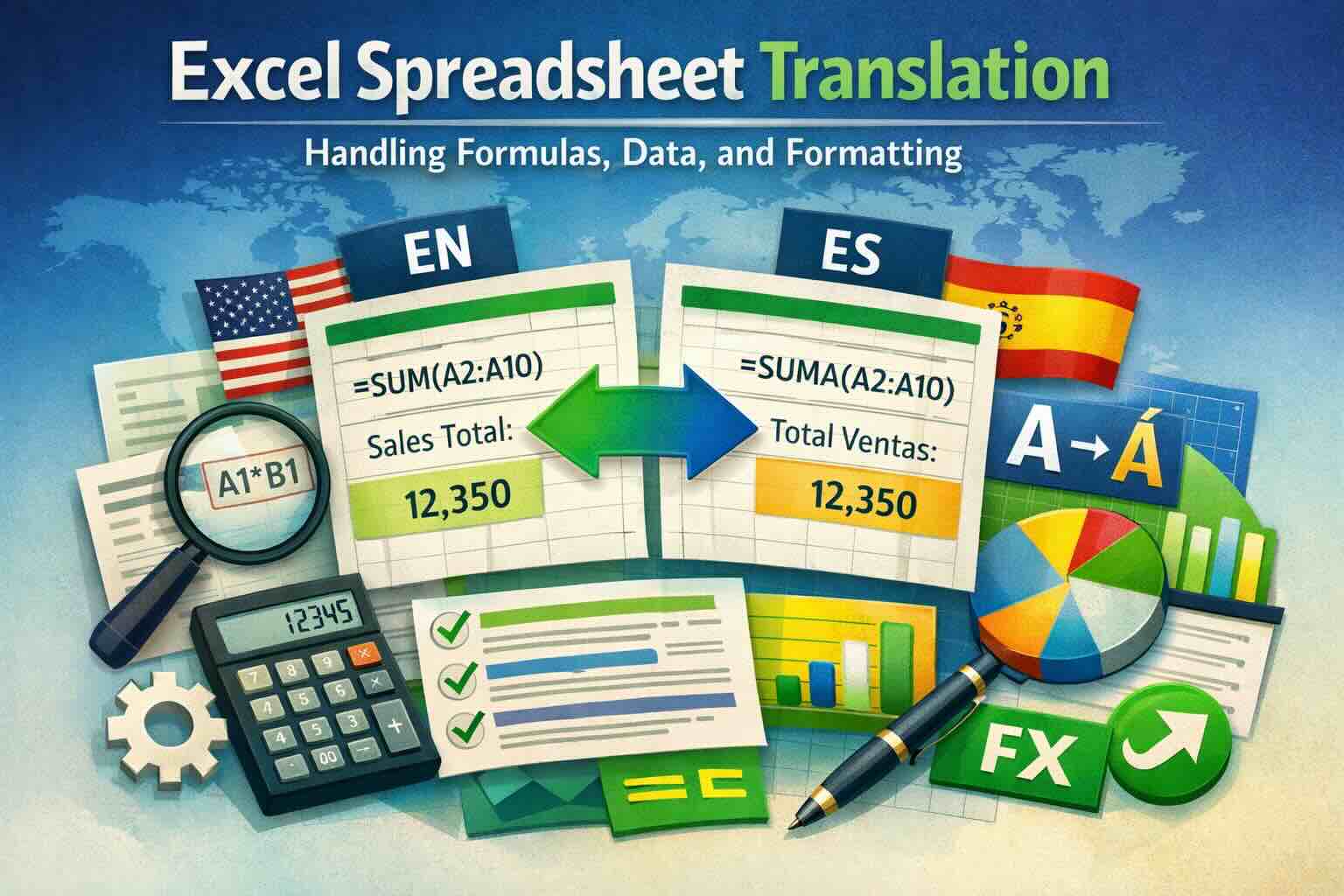
Excel Spreadsheet Translation: Handling Formulas, Data, and Formatting
Discover how to translate Excel spreadsheets while preserving formulas, data integrity, and formatting. Learn professional techniques for handling multilingual Excel files, charts, pivot tables, and complex calculations without breaking functionality.
How to Translate Word Without Losing Formatting
A practical guide to translating DOCX and DOC files while preserving tables, headers, images, fonts, and page layout.
How to Translate Excel Files Without Breaking Tables
Learn how to translate Excel files online while preserving workbook structure, tables, sheets, charts, and formatting.