Translate a Scanned PDF to English: Find and Fix OCR Errors
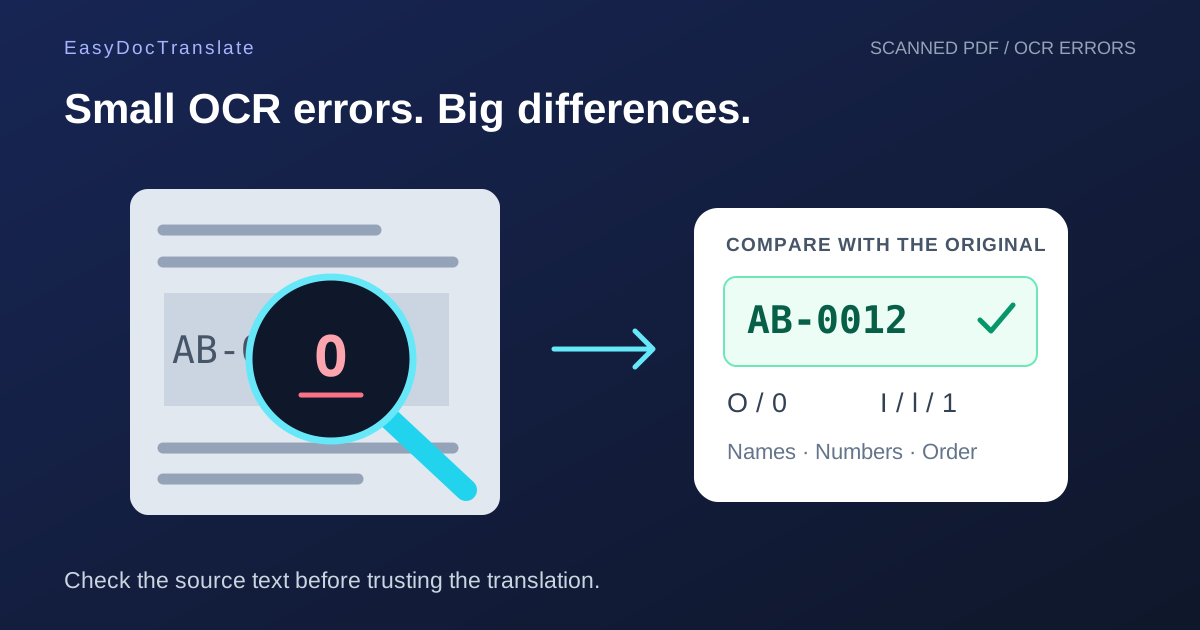
Separate recognition errors from translation errors, prepare a readable scan, and check numbers, names and reading order before using an English document.
To translate a scanned PDF to English, the service first needs readable source text. Optical character recognition, or OCR, turns the marks in a page image into characters. Translation then interprets those characters. A wrong account reference or a merged table row can therefore start as an OCR problem, even when the English output looks fluent.
The most useful troubleshooting question is: does the original page contain the information clearly enough to recognize? This guide helps you answer it before repeatedly uploading the same file. For the basic workflow, see the existing scanned PDF translation guide.
Check the source before choosing a scan translator
Open the PDF and try selecting a sentence. Copy it into a plain-text editor and compare the result with the visible page. No selectable text often indicates an image-only page, but copy restrictions can also prevent selection. Selectable text is not proof of accuracy: an earlier OCR pass may have added an incorrect text layer.
Inspect more than the first page. A combined PDF can contain a digital cover letter, scanned attachments and photographs. Each part can require a different kind of review. Keep the original file and make a separate working copy for any rotations, replacements or compression.
Match the symptom to the likely source problem
| Symptom | Check before retrying |
|---|---|
| Missing words near an edge | Look for cropped lines, a page fold or a dark border covering text. |
| Incorrect digits or reference codes | Compare similar characters such as O/0 and I/l/1 at a readable zoom. |
| Sentences from two columns mixed together | Inspect the reading order rather than only individual translated words. |
| Labels paired with the wrong amounts | Compare table rows and columns against the original page. |
| Unchanged text inside a stamp or diagram | Check whether the text is clear, overlapped or embedded in a complex image. |
This table describes possible failure patterns, not measured accuracy rates for the service. The same symptom can have several causes. A clean-looking scan may still contain faint punctuation or an unusual typeface that needs manual checking.
Prepare a better working copy
- Rotate sideways pages so lines of text are upright.
- Use even lighting when photographing a document. Avoid glare across names or numbers.
- Keep complete lines and page edges visible. Do not crop away footnotes just to make the page look cleaner.
- Preserve detail when reducing file size. Enlarging a blurred image cannot recreate missing characters.
- If you have the original DOCX, consider translating that file instead of a scan of its printed pages.
The upload accepts one file of up to 40 MB. If your file exceeds that limit, reduce unnecessary image size in a copy while checking readability. Dividing a file also creates separate translation jobs and separate page-based prices; check each quote rather than assuming the original total still applies.
Run a first-page preview and compare it deliberately
- Open Scanned Document Translation and select the source language, or use automatic detection when appropriate.
- Choose English as the target and upload the scanned PDF.
- Continue to the free first-page preview.
- Compare names, dates, amounts and the order of paragraphs with the original.
- If the preview is useful, review the displayed price before proceeding with the full translation.
The preview covers the first page only. A correct cover page cannot verify an attachment further inside the file. Full translation is paid: €0.99 for the first page plus €0.50 for each additional page. See current pricing and the quote shown for your document.
Review the English file after download
Check content that does not need linguistic interpretation as carefully as prose. A reference such as AB-0012 should still identify the same item. An amount should still belong to the same row. For a numeric date such as 04/05/2026, establish the source convention before deciding which English date wording is correct.
For an official submission, ask the receiving organization whether it requires a certified translation. An AI-generated document is not automatically certified. That requirement is separate from whether OCR has recognized the page accurately.
Frequently asked questions
Will uploading the same scan again fix the text?
Not reliably. If the problem is blur, cropping or missing information, improve the source first. The service cannot reconstruct text that is absent from the image.
Can I translate handwritten notes in a PDF?
Handwriting, overlapping stamps and signatures can be difficult to recognize. Compare any extracted names and numbers directly with the source rather than treating the preview as a guarantee.
Does OCR make the file fully accessible?
OCR can provide actual text, but reading order and document structure need separate checking. The W3C PDF7 technique describes OCR and checks for complete text in the correct reading order.
Start with a free first-page preview. If you discover that your PDF already contains usable digital text, the PDF translator provides the corresponding document workflow.
Ready to Preview Your Document Translation?
Preview the first translated page free. Full translation costs €0.99 for the first page and €0.50 for each additional page.
Preview a Scanned Document TranslationTools
Popular Translation Tools
Jump from our guides directly to the right document translator.
PDF Translator
Translate native and scanned PDFs with OCR.
Word Translator
Translate DOCX and DOC files while keeping formatting.
Excel Translator
Translate XLSX, XLS and CSV spreadsheets.
Scan Translator
Translate scanned documents, JPG and PNG images.
Traductor Online Gratis
Textos largos, PDF y documentos completos.
Traducción Inglés Español
Documentos PDF y Word con IA.
Traductor Inglés Español
Traduce textos largos y documentos completos.
Traductor de Documentos
PDF, Word, Excel y PowerPoint con IA.
Continue Reading
Explore more articles about document translation, AI technology, and multilingual content
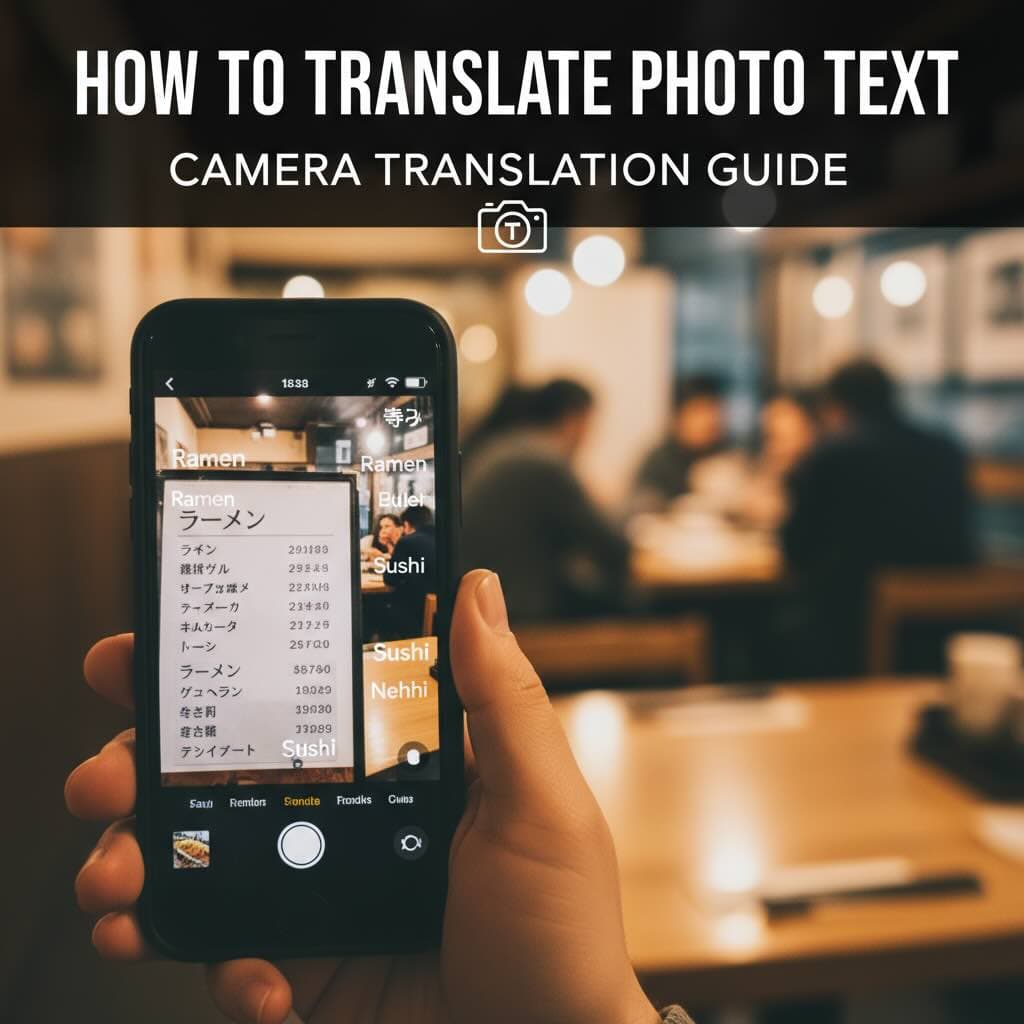
How to Translate Photo Text: Camera Translation Guide
Learn how to translate text from photos instantly using your camera or uploaded images. Complete guide to photo translation apps, OCR technology, and getting accurate translations from pictures.
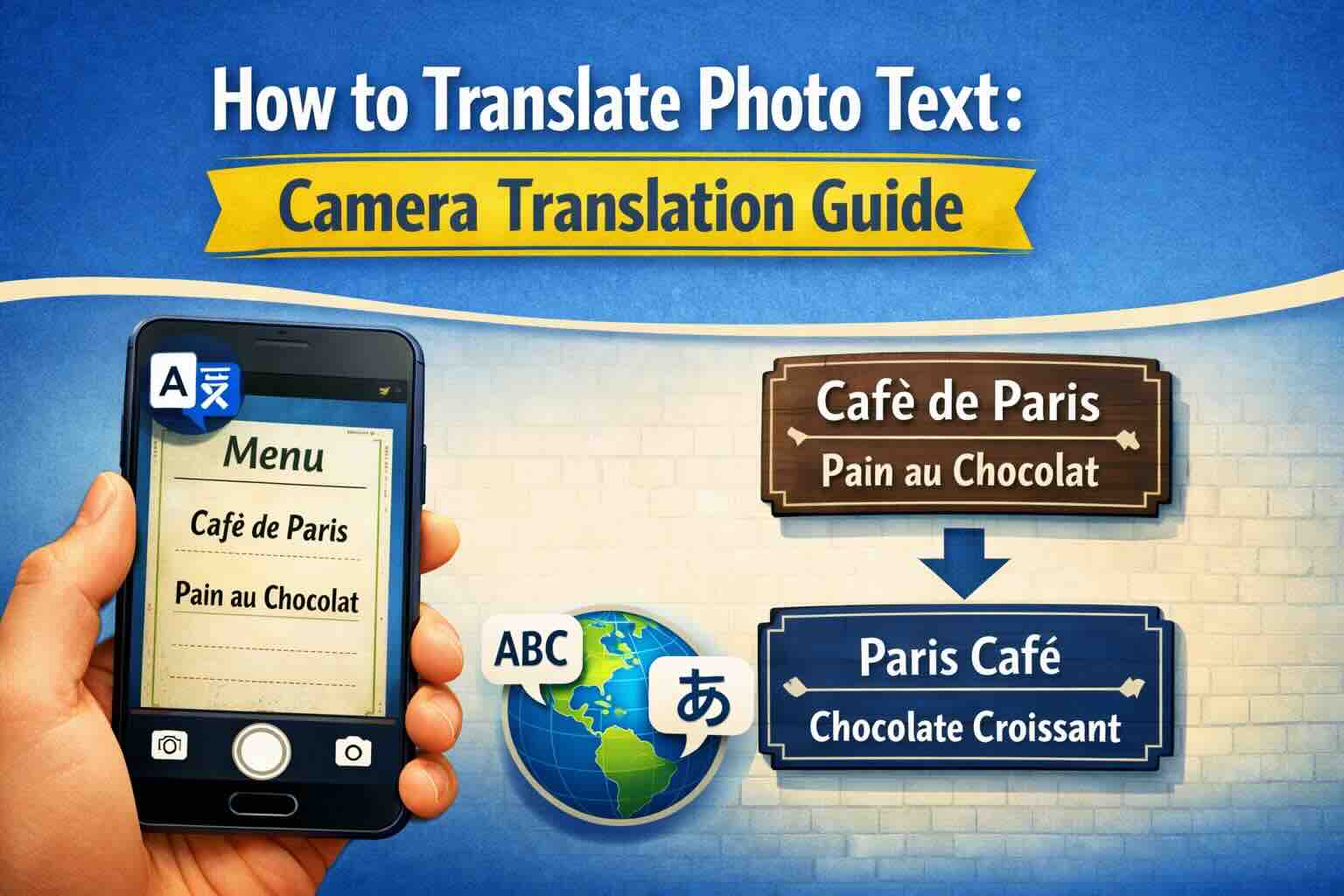
Image Translator: Complete Guide to Photo and Picture Translation
Learn how to translate text from images, photos, and pictures using AI-powered OCR technology. Discover the best image translator tools for menus, signs, documents, and screenshots in 100+ languages.
How to Translate a Scanned PDF Online
Learn how to translate scanned PDFs online with OCR, keep document structure, and preview the first translated page before downloading the full file.
Best PDF Translator for Scanned Documents
Compare what matters in a scanned PDF translator: OCR accuracy, layout preservation, privacy, preview workflow, and supported formats.