Translate a DOC File to English: Prepare a DOCX Copy First
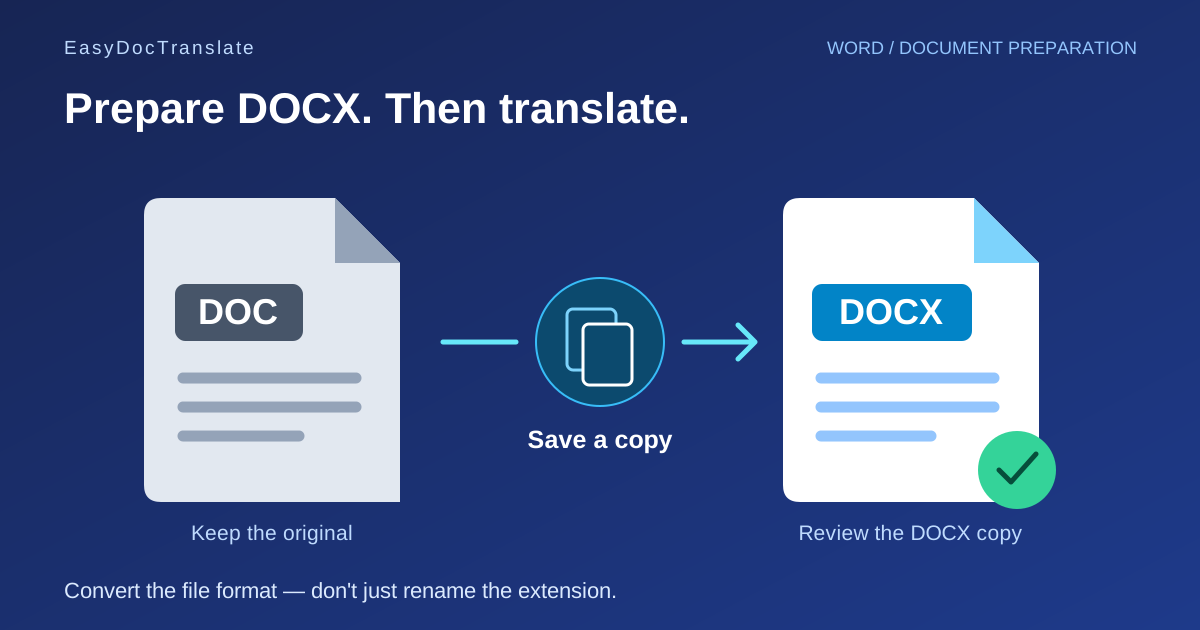
Have an older Word document? Prepare a DOCX copy, check tables and revision content, then preview the English translation before paying for the full file.
If you want to translate a DOC file to English, first check whether the upload accepts the older DOC format or requires DOCX. EasyDocTranslate's current web upload accepts DOCX. Preparing a DOCX copy before uploading avoids a format mismatch and gives you an opportunity to check the source document.
This guide is about getting an older Word file ready, not guaranteeing that every document will retain an identical layout. A successful file conversion does not prove that every table, revision or embedded object is ready for translation.
Why changing the filename is not enough
DOC and DOCX are different file formats. Renaming report.doc to report.docx changes the label, not the structure inside the file. Use a document editor that can open the original and save a genuine DOCX copy. Keep the original DOC so you can compare the converted document or return to it if necessary.
If the editor reports that some content or features may change during conversion, inspect those parts of the copy before continuing. Avoid overwriting the only original version simply to make an upload succeed.
Prepare the copy you actually want translated
- Open the DOC in a compatible editor. Confirm that the text, tables and images display as expected.
- Save a separate DOCX copy. Choose DOCX as the file type, rather than editing the extension in a file manager.
- Reopen the new copy. Check that the file really opens and that the relevant pages are present.
- Review revision content. Decide which tracked changes belong in the final text and whether comments should remain. Resolve them in the copy according to your document's purpose.
- Check headers, footers and tables. Look for missing logos, altered page breaks or text that has moved outside a cell.
These preparation steps take place in your editor. They do not imply that the translation service has a revision-management feature or a setting to exclude selected content. Submit a document whose visible content is already the version you intend to translate.
Check the parts that are easy to miss
A business report can look correct on page one while hiding problems later. Inspect at least one page with a table, one page with a header or footer, and the last page. If the document contains charts or images with text inside them, assess those separately from ordinary paragraphs.
| Source element | What to check in the DOCX copy |
|---|---|
| Tables | Row order, merged cells and labels associated with numbers. |
| Headers and footers | Names, page numbers and reference information that may repeat across sections. |
| Comments and revisions | Whether the submitted copy contains only the content you want reviewed and translated. |
| Images and text boxes | Whether important wording is regular document text or part of an image. |
For a wider formatting checklist, see the Word document translation formatting guide. If your supposed Word file is mainly pictures of pages, the OCR error checklist is also relevant.
Translate the DOCX to English
Open the Word document translator, select the source language and choose English as the target. Upload one DOCX file of up to 40 MB and continue to the first-page preview.
The service prepares a visual preview of the first translated page. Compare names, headings and any table on that page with the source. This sample is not a full inspection of the entire document: review the remaining content after the complete translation is available.
The first-page preview is free. Full translation costs €0.99 for the first page and €0.50 for each additional page. Five pages cost €2.99 at that rate. The number of pages used for the quote comes from document preparation, so check the amount displayed rather than estimating the price from the file size. Current rates are listed on the pricing page.
What to review in the English result
Translation changes text length. A heading can wrap to another line, and a longer table label can require more space. Compare content and readability, not just the number of lines on a page. Verify numbers and identifiers literally; they should still refer to the same records.
Before sending the document onward, review section order, repeated terminology, references and the final page. If you made manual changes to the translated copy, save it separately so you retain both the original and the initial translation for comparison.
Frequently asked questions
Can I upload DOC, RTF or ODT directly?
The current Word upload format is DOCX. Prepare a DOCX copy of an older or alternative word-processing file in a compatible editor first.
Is a DOCX file always better than a PDF?
Use the cleanest original you have. An editable DOCX can be a useful starting point, but a conversion with missing content is not better than a readable PDF. Check the working copy before selecting the route.
Does the free preview include the full Word document?
No. It covers the first translated page. The complete translation is paid, including for a one-page document.
Prepare a free first-page Word preview, or use the document translator when you need information about other supported file types.
Ready to Preview Your Document Translation?
Preview the first translated page free. Full translation costs €0.99 for the first page and €0.50 for each additional page.
Preview a Word Document TranslationTools
Popular Translation Tools
Jump from our guides directly to the right document translator.
PDF Translator
Translate native and scanned PDFs with OCR.
Word Translator
Translate DOCX and DOC files while keeping formatting.
Excel Translator
Translate XLSX, XLS and CSV spreadsheets.
Scan Translator
Translate scanned documents, JPG and PNG images.
Traductor Online Gratis
Textos largos, PDF y documentos completos.
Traducción Inglés Español
Documentos PDF y Word con IA.
Traductor Inglés Español
Traduce textos largos y documentos completos.
Traductor de Documentos
PDF, Word, Excel y PowerPoint con IA.
Continue Reading
Explore more articles about document translation, AI technology, and multilingual content
Doc Translator Online: The Complete Guide to Document Translation
Everything you need to know about online doc translators. Learn how to translate Word documents, PDFs, and other files while preserving formatting, using AI-powered translation technology.
Best Translator for Long Texts and Documents
Long text translation works best when the entire document is translated together, preserving context, terminology, formatting and structure.
Google Translate vs Document Translator: Which Is Better for Files?
Google Translate is useful for text, but document translators are built for PDF, Word, Excel, PowerPoint and scanned files with layout preservation.
DeepL vs Google Translate for Documents
DeepL and Google Translate are strong text translators, but document translation depends on file formats, previews, layout, OCR and workflow.